Navigate the map
Pan, zoom, hover and select on the Ephemeris map with a mouse, trackpad, touch screen or keyboard.
This page describes how to move around the Ephemeris map and inspect what is on it.
Pan and zoom#
| To | Mouse or trackpad | Touch screen |
|---|---|---|
| Pan | Drag the map | Drag with one finger |
| Zoom at a point | Scroll the wheel over it, or pinch on a trackpad | Pinch with two fingers |
| Zoom around the centre | Select + (Zoom in) or − (Zoom out) | Tap + or − |
| See everything again | Select Fit the whole map (the corners icon under the zoom buttons). This also clears any selection. | |
As you zoom in, more labels appear: item names first, then document names in capitals (for example ADUHELM · STATISTICAL REVIEW), then individual entity names.
Hover for details#
Point at a dot to see a tooltip about the nearest dot. The pointer changes to a hand when a dot is under it.
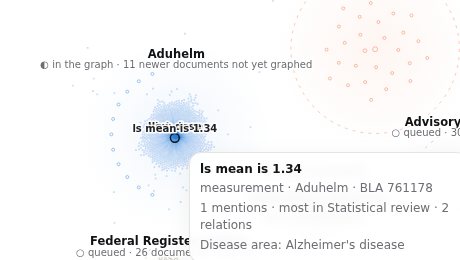
The tooltip depends on what you point at:
| Dot | Tooltip shows |
|---|---|
| An entity in the graph | Its name; its type, drug and application (or shared concept); how many times it is mentioned, the document that mentions it most, and how many relations it has. |
| A listed drug | Generic name, application and class, then “Listed only: approved <date>, not graphed”. |
| A projected dot | Projected entity with the drug, document and page it will come from, and “Real entities appear when this package is built”. |
Unless the map is grouped by Graph status, the tooltip ends with the current grouping, for example Drug class: Anti-amyloid antibody.
Entity types#
The type line uses these words: measurement, milestone, table / figure, statistic, timepoint, dose, regulatory concept, organisation, person, adverse event, trial, endpoint, method, population, biomarker, arm, drug, decision, application, indication, gene, meeting.
Select a dot#
Click or tap a dot to select it. The selected dot gets a dark ring; its direct neighbours and the lines to them stay bright, and everything else fades. This is the fastest way to see what an entity is connected to.
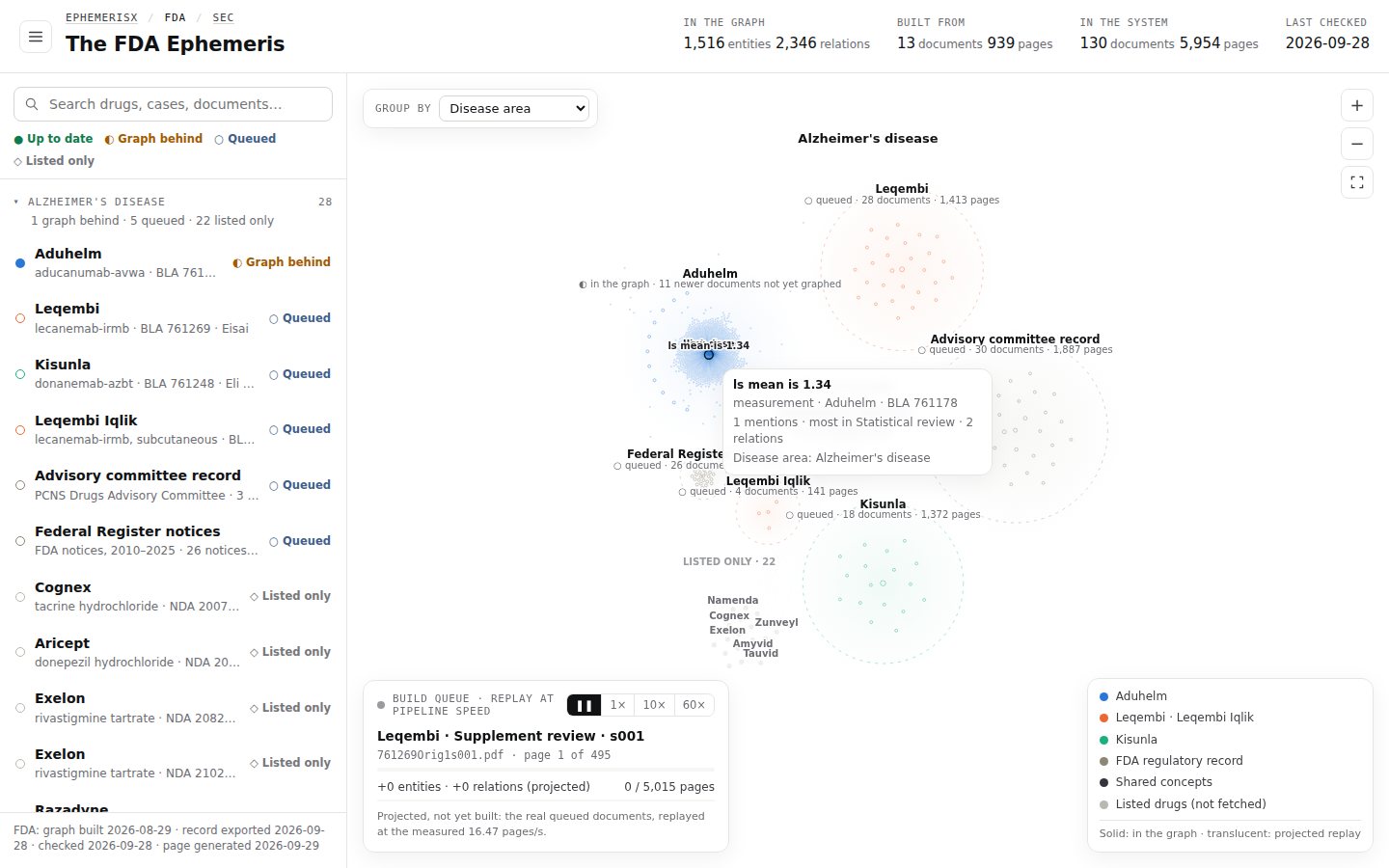
- Click the same dot again to clear the selection.
- Press Esc to clear the selection and hide the tooltip.
- Select Fit the whole map to clear it and zoom out.
Keyboard#
The map is operated with a pointer. Its only keyboard shortcut is Esc, which clears the selection. Everything on the map is also in the list, which works fully with the keyboard: Tab to a row, Enter to open it, and select Show on map to move the map there.
Motion#
Items drift gently into place and sparks move along some lines. The sparks are decorative. If your device is set to reduce motion, the Ephemeris turns the sparks off, jumps instead of animating, and starts the build queue replay paused. See Devices and accessibility.